This page is for members of the execution group carrying out an approved request. Review the runbook and assessment, execute the approved content and retain the results.
Select an approved runbook
- Open “Cloud operations” at
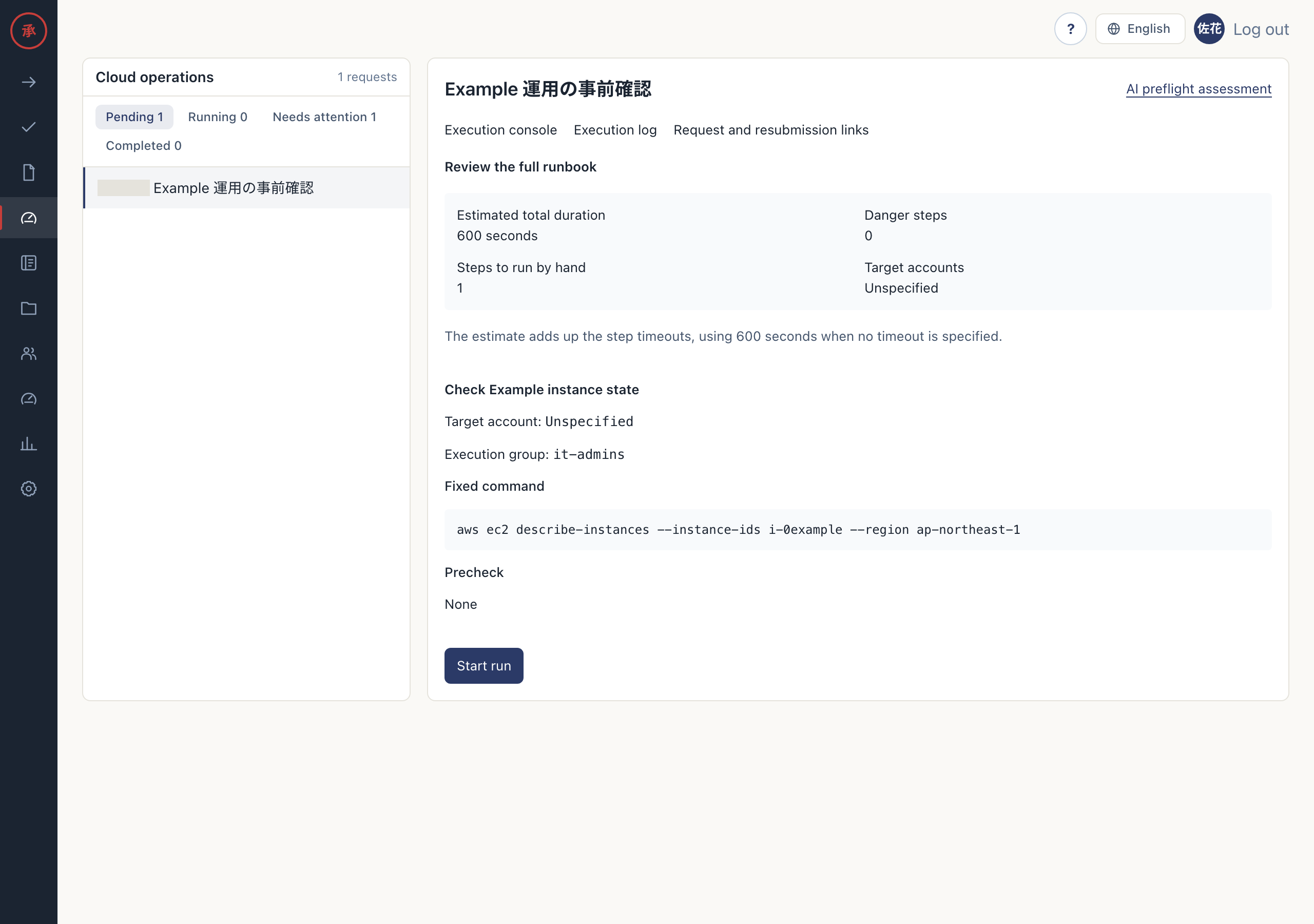
/ws/operations. You can review operations with approved runbooks. - Select “Drafts”, “Awaiting approval”, “Pending”, “Running”, “Needs attention” or “Completed”, then open an operation in the list. Approved work appears from “Pending” onward. The right pane shows the runbook overview or execution console.
- Check “Command (bound to the hash, not editable)”, “Precheck”, “Expected result” and the execution group. You can identify the target and required checks.
Viewers cannot execute steps or record results. Members of the assigned group perform those actions. Opening the page does not execute cloud operations.
The list shows the latest 100 operations and tells you when there are more. To open an older operation, use “Open execution console” on its request details page. Approvers and administrators see this link on approved, running, and ended requests that include a runbook. Requests that have ended or failed appear under “Completed”, even if some steps are unfinished.
Use the entry tabs to switch between operations, runbooks, and standing approvals. People who can manage settings also see Accounts. The list shows counts by status, search, and filters for operations you created, emergencies, pending post-approval, and production targets. List counts and search cover the fetched rows. Open the disclosure below the tabs to configure the emergency group.
Use “Request #<request ID>” on the operation details to return to the source request. You can also open the operation from the request details.
Review the assessment
- Open “AI preflight assessment”. You can review the verdict, concerns, past execution records and unknowns.
- Select “Re-evaluate” when needed. An assessment based on read-only checks and historical records is saved. If the request was assessed within the last minute, the saved result is shown instead.
- Read the evidence and unknowns, then decide how to proceed as the operator. The assessment is advice; it does not change the approved plan or execution permissions.
Assessment runs automatically after the final approval on the Web. After a Slack approval, or when the checks at approval time do not finish within 20 seconds, the page shows no assessment yet; select “Re-evaluate”.
Rules provide the assessment when AI is unconfigured or unavailable, or when the runbook is too large for the AI input limit. Missing read connections leave information marked as unknown. Assessment does not perform changes.
Execute steps
- If “Review the full runbook” appears before execution starts, read every step and select “Start run”. The first executable step is prepared.
- In “Execution console”, check the step status and command, then select “Run step” for a ready step. The approved operation proceeds when its precheck passes.
- If “Review dangerous operation” appears, read the impact and rollback, enter the specified target resource name and execute. The step runs only when the name matches.
- If “Check status” appears, use it to check completion. After a step succeeds, the next step becomes ready.
Runbook steps use one of three modes: auto, assisted or copy. Auto and assisted steps behave the same way: they run through the API when the operator selects “Run step”. Approval alone never starts a step. Copy steps are performed externally and their results recorded. APIs used for prechecks and postchecks are read-only.
Handle copy mode and failures
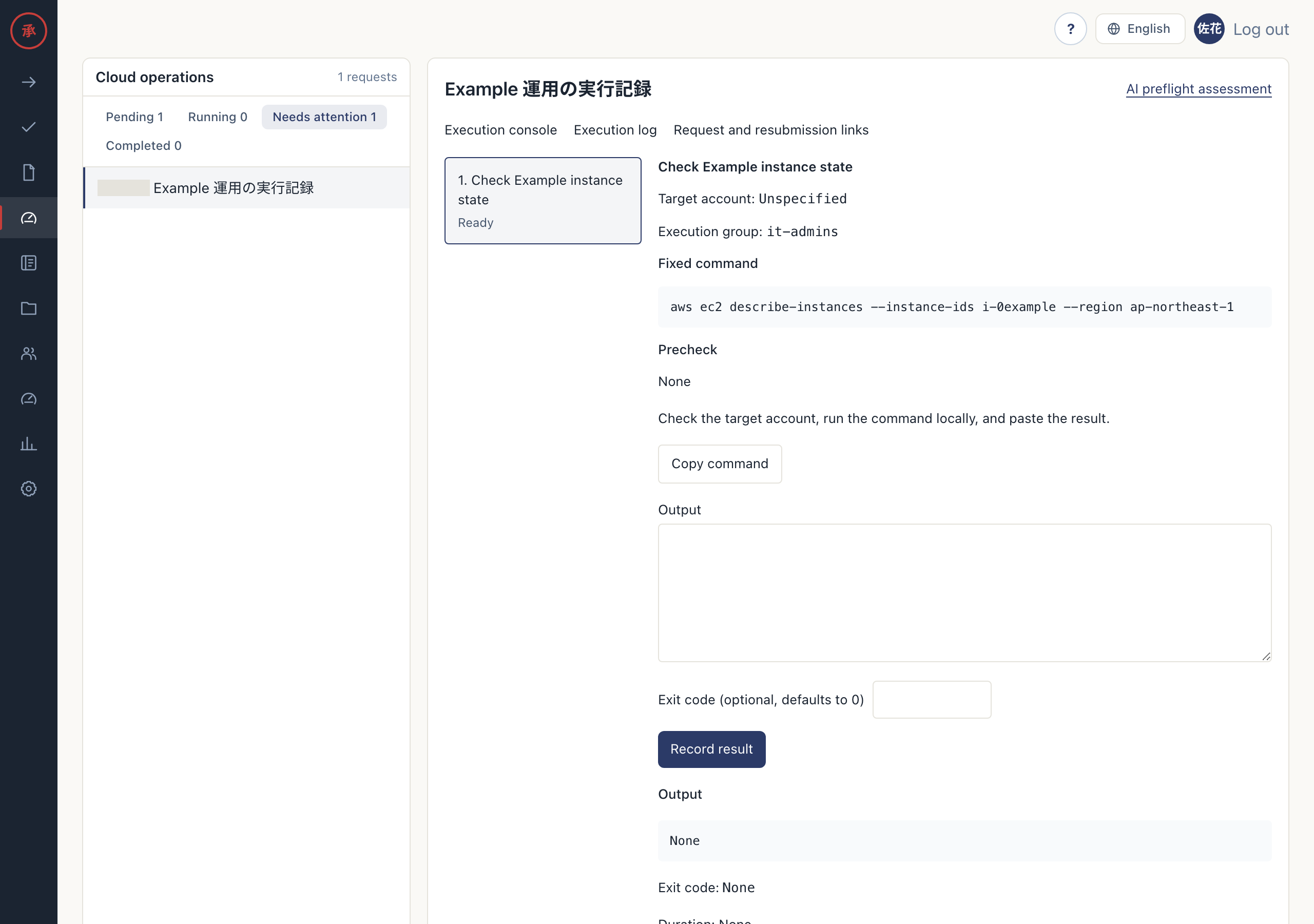
- If missing connections or credentials require copy mode, select “Copy command”. You can copy the approved command to your local environment.
- Check the execution target, carry out the work externally, enter “Output” and any “Exit code (optional, defaults to 0)”, then select “Record result”. Evidence is saved; an exit code of 0 allows the next step to proceed.
- On failure, read the output and choose “Try again”, have the requester “Fix and resubmit”, or select “Stop here”. The retry, new request or cancellation is recorded.
- Open “Execution log”. You can review the actor, timestamp, exit code and output excerpt.
Network failures and similar API availability problems return execution to copy mode. Permission errors for work created through New operation also return to copy mode. Permission errors for existing catalog requests, failed prechecks and timeouts stop the step as failed. If interrupted execution has an unknown result, check the current state before recording evidence.
The approved plan cannot be edited in place. Catalog runbook corrections apply to future requests. See Execution and audit logs for tracing records.
If the specified account is missing, the console shows that reason. Check the execution target before using copy mode. Duration is rounded to whole seconds.
If the screen cannot refresh after an action, it shows the action result and a refresh notice. Reload the page to check the result before repeating the action.
Save a runbook on its own
Open the Runbooks tab to see the latest version for each key. Filter by All, Read only, Includes changes, or With active standing approval, and search by name or key. Counts and search cover the fetched list of up to 100 runbooks. The standing approval filter includes a runbook when any version of its key has an active standing approval.
Select a version to open tabs for steps, approval routes, version history, catalog references, standing approvals and JSON. Dangerous steps show impact and rollback instructions. The right pane shows version authors and catalog references. Used in production means an operation using any version of this runbook targets a production account. Use New operation with this version or Request standing approval to start work with that version.
People with catalog management permission can expand Create a new runbook on the list page. For an existing version, select Edit as a new version to open the JSON editor for its name, translations, steps and approval route. The editor stays hidden during normal viewing and for people without catalog management permission. Saving adds a version. Existing catalogs and standing approvals keep their referenced versions, and approved plans keep their hash. Catalogs referencing older versions show guidance for selecting the latest version in the catalog editor.
The read-only badge is calculated from the step operations. A runbook containing a write operation is never read only.
Accounts must be registered in this organization and belong to the same cloud as the action. After a save, the new version opens with a success message. Invalid input returns you to the editor with guidance on what to check. Changing catalog steps carries forward the latest runbook name, translations and approval route. Selecting a standalone runbook for a catalog is not available yet. Runbooks submitted through a new operation show the internal request catalog in their usage list.
Create work before requesting approval
Select New operation, then choose a runbook version, enter a title and inputs, and select one execution account. Inputs are a JSON object with keys matching the fields referenced by the runbook. Check the commands, plan hash, assessment and unknowns in the preview. Rule-based assessment remains available when AI is unavailable.
Request approval freezes the contents, creates a request and uses the runbook approval route. Without a configured route, the request goes to your manager. After approval, the operation is ready in the existing execution console. Save draft keeps the contents for later editing. Drafts cannot execute. Each button has a line explaining its purpose.
Edit or discard your drafts from the list. After submission, the inputs, target and runbook version cannot change. For returned work, check the original request. Rejected and withdrawn requests appear as cancelled and cannot execute. Approved requests without a runbook show Add operation. The added work needs approval through a new request. Completed operations offer Duplicate as draft. A duplicate also needs approval.
This screen also offers read-only execution under organization policy and execution within a standing approval scope. Emergency execution with a reason and post-approval is also available. Open assessment at /requests/<ID>/assessment, using the request ID.
For a returned, rejected or withdrawn operation request, use Duplicate as draft on the request detail page. Only the original requester can do this. The original request stays frozen. Edit the new draft and request approval again. Only the draft creator can view or preview it.
You can add an operation to your own request or one where you are a designated approver or have acted on an approval step. The creator or a member of the execution group can duplicate a completed operation. Duplicating a legacy operation without a runbook version also requires catalog management permission.
Execute read-only work
When every action is classified as read-only by the allowlist and your organization does not require approval, select Execute after previewing the plan. This fixes the version, inputs, target and hash, then uses the read role. Audit records retain the actor, time, account and actions. Runbooks with change actions cannot use this exit.
Approval is optional by default. Owners and admins can require it under Approval for read-only operations in Settings. This also blocks existing work that has no approval. Select Request approval to submit the same fixed plan. Execution still checks the approved hash.
Missing read connections, API failures and permission errors return to copy mode. Run the command from the details page in your own environment, enter evidence and select Record evidence. Evidence is appended without changing earlier records. Secret output values are masked. Auto steps proceed in order; assisted steps wait for the next Execute action.
Work that requires approval from the outset runs in the execution console after approval. Record its evidence there too. Resume and evidence recording on the standalone detail page apply only to work fixed by Execute without an approval request.
Execute routine work with standing approvals
Open Standing approvals under Operations. Request approval for a runbook version, target scope, input ranges, allowed executors and validity window. Only non-production accounts are supported. Validity is at most 30 days. Runbooks with dangerous steps cannot use standing approvals.
Select target account chips, input ranges, and allowed executors in the form. Input ranges support numeric minimum and maximum, comma-separated values, and exact matches. Specify a range for every input. Existing group targets are preserved. If you edit the text under Show JSON, that JSON is submitted. Enter the start and expiry in your browser time zone. An empty start means now. Select Preview to review the submission locally before requesting approval.
Manage account groups in Accounts. People who can manage settings see a link to that screen above the list. To set an account's environment, or to create a group or add an account to one by ID, open Account environment and groups (by ID) below the list. Existing accounts start as Unverified and cannot execute through standing approvals until verified as non-production. Owners and admins set the environment. Only designated group administrators can add accounts.
Approvers review the version and scope in the usual request screen. The existing route, delegation and send-back actions apply. After approval, preview a new operation, enter the standing approval ID at the exit step, and select Execute with standing approval. Every execution checks target, inputs, executor, version, expiry and revocation, then records the approval and execution hashes together. Use Request approval for work outside the scope.
The list has segments for active, expiring within three days, scheduled, pending approval, returned or rejected, expired, and revoked approvals. Withdrawn requests appear with returned or rejected requests. Each row shows the latest approver and a validity bar. Select Execute within this scope on an active or expiring row to open a new operation. Scheduled rows explain why execution is unavailable. The creator, an owner or an admin can revoke an approval. Revocation takes effect at the next check before execution. It cannot undo a cloud call already in flight. Production accounts remain blocked even if they are added to an approved group.
Request renewal creates a new approval request. When only validity changes, an approver can select Renew the same scope (1 click) once on the list page. Any later approvers still follow the same route. To renew with a changed scope, edit the prefilled scope in the request form on the right. API clients set the previous approval ID as renewedFromId. Expiry is evaluated when the page opens and when an operation executes.
Unavailable APIs and permission failures fall back to copy mode with appended evidence. Writes with unknown outcomes are not automatically repeated. For work blocked by expiry or revocation, request ordinary approval from a new draft.
For a returned, rejected or withdrawn standing approval, select Edit and resubmit in the list or Resubmit on the request detail page. Only the creator sees Withdraw on pending requests. The request form carries over its version, title and scope. Edit them and submit a new request.
Execute across multiple accounts
Select multiple accounts in the target step of a new operation. You can mix AWS, Google Cloud and Azure. Each step expands only to accounts for its cloud. Review the order and commands in the preview. Requesting approval or starting execution fixes the targets and their order.
The left side of the execution console shows progress for each account. Accounts execute one at a time. Changes must be confirmed before the next account starts. If an API or connection problem stops execution before the write is sent, run the copy-mode command in your environment and record evidence. If the console says the write was already sent, select Check the result to resume only the read check. Do not run the write command again. Dangerous operations also require the target resource name. To skip an account, enter a reason, select Skip this account and continue, then select Execute to continue. The audit log retains the reason.
Reads and changes use separate connections. Multi-account AWS execution requires an account-specific OIDC connection. Relay account credentials are not used. Missing connections fall back to copy mode. For standing approvals scoped to a group, execution checks every selected target before starting. Adding accounts to the group after execution starts does not add targets to that execution.
Accounts
Filter the list by search, labels, groups, and the All, Stale, Failed, or Pending activation chips. Connection check progress appears above the table. Select a row to view its environment and connection result and edit labels, credential lifetime, and groups in the right panel. Add or delete label key and value rows, and use Show JSON to inspect their current contents. Use Check connection in the panel to check again. The header offers Register individually in settings and Register in bulk, which opens the bulk form on the same page.
Administrators can open Accounts in operations to see the cloud, account key and display name, labels, authentication method, last check time and result, localized failure reason, and allowed action count. The existing settings screen still supports registration, editing, deletion and connection testing. Each screen links to the other.
The list displays stored results first, then checks connections with at most five concurrent requests. A result becomes Stale after seven days; unchecked accounts are also stale. There is no background job. Before execution, the existing credential acquisition records its result without fetching another token. Failures follow the existing copy mode path.
Administrators can edit labels and groups. Labels accept up to 20 string pairs, with keys up to 63 characters and values up to 255 characters. Existing account groups are reused. Only designated group administrators can add members. The creator administers a new group. Changes are recorded in the audit log.
Filter execution targets by label or group in the draft editor. Filtering preserves selected accounts. Approval freezes concrete targets and retains the existing plan and hash format. Account keys, connection and trust settings, and subjects remain unchanged.
Set the credential lifetime
The temporary credentials fetched for each execution last 15 minutes by default. Raise the lifetime for work that takes longer, such as terraform apply or an RDS upgrade.
- Administrators select the account key in Accounts, enter 15 or more in Credential lifetime (minutes), then select Save lifetime. The limit is 720 minutes (12 hours) for AWS and 60 minutes for Google Cloud and Azure. The change is recorded in the audit log.
- For AWS values above one hour, also set the maximum session duration (MaxSessionDuration) of the connected IAM role to at least the same time. AWS rejects requests above the role limit.
- Enter Required credential time (minutes, optional) on a runbook step to declare how long that step needs. Declarations above 15 minutes appear on the approval card, the plan preview, and the execution console.
At execution, credentials are requested for the shorter of the step declaration and the account limit. Without a declaration, the request uses the smaller of 900 seconds and the account limit. Raising the account limit alone does not extend the requested time. If the declaration is longer than the account limit, the step stops without sending anything to the cloud (credential_lifetime_too_short). Azure does not accept a requested lifetime, so the step stops when the issued token has less time left than the declaration. If credentials expire during execution, the step is recorded as failed (credential_expired) instead of switching to copy mode.
A stopped step shows the reason and how to resume. Check in the cloud how far the work got. If the step stopped before sending the operation, raise the account limit to cover the declared time and run it again. A write already sent stays pending confirmation. Resuming only checks its result and never sends the write again. Resuming requests new credentials.
Register accounts in bulk
Admins can paste up to 100 AWS or Google Cloud IDs, or up to 20 Azure subscription IDs, separated by newlines or commas, under Accounts, Register in bulk. Select the cloud, common connection settings, allowed operations, and optional labels. Review the derived keys, invalid formats, duplicate input, and registered IDs before submitting. Existing keys in the same organization are skipped.
Keys are aws-<12-digit account ID> for AWS, gcp-<project ID> for Google Cloud, and azure-<lowercase subscription GUID> for Azure. Manual registration uses a key you choose. A key matching the automatic format must identify the same cloud ID. Keys cannot be changed after either form of registration.
Bulk accounts start as Pending verification. Registration makes no connection requests. Choose Open the list to check connections to check up to five at a time. Only accounts that pass their first check become active and selectable for new work. Failed rows remain with a reason. Already fixed execution targets can also become active through the check immediately before execution. Failed checks fall back to copy mode. Later failures appear in the connection result and retain the first activation time. Editing connection settings or allowed operations on a bulk account returns it to pending verification and requires another successful check. Note-only edits preserve activation. Manual accounts remain usable as before.
Deploy AWS roles with StackSets
Use infra/bulk-registration/aws/actagate-stackset.yaml from the repository. Enable trusted access in Organizations, then deploy through service-managed StackSets to the target OUs in one region only. IAM resources are global. Deployment requires acknowledgement of named IAM resource creation.
Set OrgId to the organization ID shown in the form and IssuerUrl to its issuer URL. Set IssuerHost to the same URL without https:// or a trailing /. Audience is sts.amazonaws.com. Choose different ExecutionRoleName and ReadRoleName values. AllowedExecutionActions must contain only IAM actions needed by the allowed operations; ExecutionResources contains their target ARNs. Operation names differ from IAM actions: for example, aws.ec2.stop_instances requires ec2:StopInstances. ReadActions defaults to ec2:DescribeInstances. Use * in ReadResources only for APIs that do not support resource-level authorization.
For accounts with an existing OIDC provider, set CreateOidcProvider to false and supply ThumbprintList if needed. Each role trusts only the subject derived from its own account ID. After deployment, enter both role names and the region in the form, then paste the account IDs.
Create the Google Cloud pool in a host project
Prepare a host project under the organization or folder. Create the pool there and separate execution and read service accounts in each target project. The deploying admin needs permission to enable APIs, create the pool and service accounts, and change IAM bindings.
infra/bulk-registration/gcp/setup.sh accepts these environment variables and project IDs as arguments. PROJECT_IDS_FILE also accepts a file containing one ID per line. Set EXEC_ROLES and READ_ROLES to comma-separated roles granting the required permissions. Select roles granting only read permissions for the read identity.
export HOST_PROJECT=identity-host ORG_ID='<organization ID from the form>' ISSUER_URL='<issuer URL from the form>'
export POOL_ID=operations-pool PROVIDER_ID=operations-provider
export EXEC_SERVICE_ACCOUNT=operations-exec READ_SERVICE_ACCOUNT=operations-read
export EXEC_ROLES='<required execution roles>' READ_ROLES='<required read roles>'
bash infra/bulk-registration/gcp/setup.sh project-one project-two
For Terraform, pass the equivalent settings from variables.tf and project_ids to infra/bulk-registration/gcp/terraform/. Run terraform init -backend=false and terraform validate, review the plan, then have an admin apply it. Do not create the same resources through both gcloud and Terraform. The script is for initial creation; do not rerun it against existing resources.
Enter the output Workload Identity provider resource name and both service account names in the registration form, then paste the target project IDs. The number in the provider name belongs to the host project. The audience is https://iam.googleapis.com/<provider resource name>. Each trusted principal has a subject specific to its target project.
Configure the Azure app and subscription permissions
infra/bulk-registration/azure/setup.sh requires az and jq. The admin needs permission to register an app and service principal, and to create and assign custom roles in each target subscription. Set ORG_ID, ISSUER_URL, APP_NAME, EXECUTION_ACTIONS, and READ_ACTIONS, then pass subscription IDs as arguments. SUBSCRIPTION_IDS_FILE also accepts a file containing one ID per line. Actions must be JSON arrays containing only required operations, without wildcards.
export ORG_ID='<organization ID from the form>' ISSUER_URL='<issuer URL from the form>' APP_NAME=operations-batch-1
export EXECUTION_ACTIONS='["Microsoft.Compute/virtualMachines/start/action"]'
export READ_ACTIONS='["Microsoft.Resources/subscriptions/read","Microsoft.Compute/virtualMachines/read"]'
bash infra/bulk-registration/azure/setup.sh '<subscription GUID>'
The script creates one app and service principal, with a federated credential using a distinct subject for each subscription. The audience is api://AzureADTokenExchange. Standard federated credentials are limited to 20 per app. Split larger lists into batches of at most 20, use a different APP_NAME for each batch, and register each batch with its output clientId. For 100 subscriptions, use five apps.
Credentials from a shared app share the service principal's permissions. Different subjects alone do not isolate subscription permissions. For full isolation, create an app for each subscription and register it with that clientId. Read and execution role assignments on a shared app also grant permissions to the same identity.
The Bicep example is infra/bulk-registration/azure/main.bicep. Create federated credentials through az; Bicep covers only per-subscription role definitions and assignments. Check it with bicep build. When assigning roles through Bicep, avoid creating the same roles again from the script and pass the created service principal's object ID as principalId. Enter the tenant ID and output clientId in the form, then paste the subscription IDs assigned to that app.
These artifacts create no long-lived keys. Deployment to cloud environments has not been tested; admins must validate syntax and review permissions before applying them.
Existing manual accounts can be edited without changing their keys, including keys that resemble derived bulk keys. New manual registrations with a derived key that does not match the cloud ID show a reserved-key error.
The templates reject wildcard AWS and Azure actions, and Google Cloud roles/owner, roles/editor, and wildcard roles. Registration audits include allowed operations and derived connection settings. Rejected attempts are also recorded. If registration permissions are lost, the form displays a permission error.
Run an emergency operation
Owners, admins and members of the organization’s designated group can select Emergency execution for a runbook containing changes. Enter a reason of 1 to 2000 characters. Read-only runbooks are excluded. Administrators can set the designated group on the operations list.
Starting fixes a post-approval request, plan, targets and hash. The request remains pending. Approvers and all owners/admins receive Slack DMs and email through configured channels. Continue from the execution console on the detail page. Danger confirmation and hash checks still apply.
Post-approval never repeats execution. Rejection stops progress to the next target and displays rollback instructions on the detail page. If the runbook has no rollback guidance, review the account and executed command and handle the rollback manually. No automatic rollback occurs. Enter evidence after completing the work and select “Record rollback completion”. Also check executions whose outcome is unknown.
Use Emergency and Pending post-approval on the list. The dashboard shows emergency starts in the last 30 days, the pending post-approval count and the oldest waiting age.
Post-approval cannot be withdrawn or returned. Approve or reject the request. If the route cannot be resolved because the starter has no manager, the request goes to the organization's other active owners/admins. The recipients are saved at start, and one person can approve or reject. The starter cannot approve their own request. If there is no other active owner/admin, configure a manager or approval route before starting. Normal submissions do not use this fallback.